A complete implementation guide for the Salesforce B2B Relationship Management Portal — covering all 12 build phases from org setup to sample data testing, with step-by-step instructions, Flow configuration details, and a troubleshooting guide.
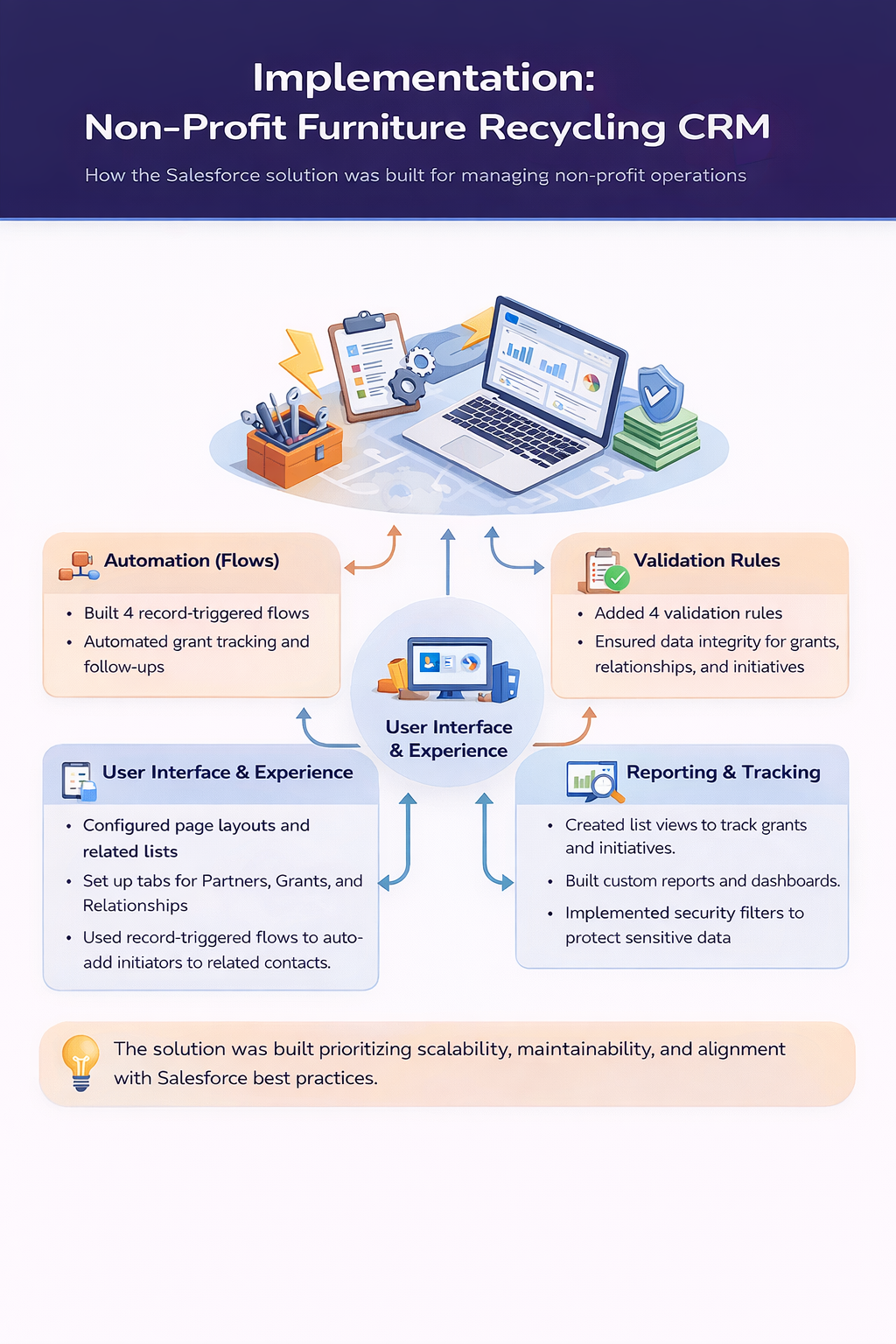
The diagram below shows how the four core implementation workstreams — Automation, Validation Rules, User Interface, and Reporting — connect to deliver a unified experience for the Fundraising Manager and Relationship Researcher.
The solution was built prioritising scalability, maintainability, and alignment with Salesforce best practices.
📋
Implementation Overview
This implementation document translates the Solution Design Document decisions into a concrete, sequential build guide for the Salesforce Developer Edition org. Each phase builds on the previous one, delivers testable functionality, and takes the system from a blank org to a fully working B2B Relationship Management Portal.
The key principle throughout the build: fields before layouts, layouts before record types, record types before profiles. Following this order prevents rework and ensures every component has what it needs to be configured correctly.
Implementation Note
Complete Phases 1 to 5 (org setup and all custom fields) before touching Page Layouts or Record Types. The fields must exist before they can be placed on a layout. Attempting to build layouts before fields are created is the most common cause of rework.
🗺️
12 Build Phases
1
Org Setup and Lightning App
Verify Developer Edition is in Lightning Experience. Create the B2B Portal Lightning App with custom navigation: Organisations, Contacts, Grants, Initiatives, Reports, Dashboards, Tasks. Relabel standard tabs at app level.
2
Custom Fields — Account
10 custom fields: Relationship Type (Picklist), Organisation Size (Picklist), Geographic Scope (Text Area), Political Structure Notes (Long Text Area), Officer Structure Notes (Long Text Area), Last Reviewed Date (Date), Last Interaction Date (Date), Relationship Summary (Long Text Area), Departments With Relationship (Text Area), Departments To Target (Text Area).
3
Custom Fields — Contact
6 custom fields: Role / Responsibility (Text Area), Seniority Level (Picklist), Is Decision Maker (Checkbox), Contact Type (Picklist), Last Interaction Date (Date), Preferred Contact Method (Picklist).
4
Custom Fields — Opportunity
Relabel Close Date → Application Deadline and Amount → Grant Value. Add 5 custom fields: Timescale Category (Picklist), Grant Reference (Text), Decision Date (Date), Application Submitted Date (Date), Funding Source Type (Picklist).
5
Initiative__c Custom Object
Create the custom object. Add Master-Detail relationship to Account first. Then add 11 further fields: Lead Contact (Lookup to Contact), Related Grant Opportunity (Lookup to Opportunity), Initiative Description, Lead Type, Timescale Category, Relevance Notes, Status, Estimated Start Date, Target Locations, Priority, Source or Link. Create the Initiatives tab and add to app navigation.
Critical
Create the Master-Detail relationship to Account before any other field. Salesforce requires the relationship field to exist before the page layout can be built.
6
Record Types
Two Account Record Types: Large Organisation and Small Organisation (shared layout — deliberate decision). One Opportunity Record Type: Grant Opportunity with custom Stage values: Identified / Application In Progress / Submitted / Awarded / Declined / Withdrawn.
7
Page Layouts
Build layouts for Account (6 sections including Political Structure, Officer Structure, Departmental Mapping), Contact (3 sections), Opportunity Grant layout (3 sections), and Initiative__c (4 sections). Configure related lists on each layout. Assign layouts to profiles.
8
Security — Profiles and FLS
Create Fundraising Manager profile (cloned from Standard User). Create Relationship Researcher profile. Set object-level permissions for each. Configure Field-Level Security on Political Structure Notes, Officer Structure Notes, Departments To Target (Read-Only for Fundraising Manager), and Grant Value / Stage (editable for Fundraising Manager only).
9
Validation Rules
Four rules: Relationship Type Required on Account (ISBLANK), Deadline Must Be Future on creation (AND + ISNEW + CloseDate), Submitted Date Required when Stage = Submitted (ISPICKVAL + ISBLANK), Timescale Category Required on Initiative__c (ISBLANK). Test each rule immediately after creating it.
10
Flows
Four Record-Triggered After Save Flows: Grant Deadline Reminder (Opportunity), New Organisation Follow Up Task (Account, ISNEW condition), Sync Primary Contact (Contact), Update Last Interaction Date from Completed Task (Task, cross-object via WhatId). Build, test, and activate each Flow before starting the next.
Implementation Note
Use the Debug button in Flow Builder to test each Flow with a specific record before activating. A Flow that is saved but not activated does nothing — check Activate is clicked on the Flow detail page.
11
Reports and Dashboards
Create shared folder: B2B Portal Reports. Build 10 named reports (6 for Fundraising Manager, 4 for Researcher). Build 6-component Fundraising Manager Dashboard: Total Pipeline Value (Metric), Awarded This Year (Metric), Pipeline by Stage (Bar), Deadlines in 30 Days (Table), Pipeline by Timescale (Donut), Grant Win Rate (Donut).
12
Sample Data and End-to-End Testing
Create 5 Accounts (3 Large, 2 Small), 6-8 Contacts, 5 Grant Opportunities at different stages, 4 Initiatives, and 4-6 completed Tasks. Run the 12-item end-to-end test checklist confirming Flows, Validation Rules, FLS, layouts, and reports all work as designed.
⚡
Flow Build Summary
All Flows are Record-Triggered After Save. Build and activate one at a time — never leave a Flow saved but unactivated.
Action: Create Task — ‘Follow up — new organisation added’
Due Date = TODAY() + 7, Owner = Account Owner
WhatId = triggering Account
Flow 3
Sync Primary Contact
Trigger: Contact · After Save
Condition: AccountId is not null
Action: Update related Account record
Keeps primary contact synced to Organisation
Prevents free-floating contact records
Flow 4 — Cross-Object
Update Last Interaction Date
Trigger: Task · After Save
Condition: Status = Completed AND WhatId not null
Navigate: Triggering Task → WhatId → Account
Set: Last_Interaction_Date__c = TODAY()
Most advanced Flow — uses WhatId cross-object pattern
✅
End-to-End Test Checklist
Perform all 12 tests after sample data is created. Each test validates a specific component of the build.
🏢
Account Layout — All Sections Visible
Open a Large Organisation record. Confirm 6 sections including Political Structure, Officer Structure, and Departmental Mapping are all present.
🛡️
Validation Rule — Relationship Type
Try to save a new Account without a Relationship Type. Validation Rule should block the save with the correct error message on the field.
💰
Validation Rule — Submitted Date
Move a grant to Submitted stage without entering the Application Submitted Date. The rule should block the save.
📅
Flow 1 — Grant Deadline Reminder
Create a Grant Opportunity with a deadline 2 days from today. After saving, a Task with subject ‘Grant deadline approaching’ should appear on the record.
🤝
Flow 2 — New Organisation Follow Up
Create a new Account. After saving, a follow-up Task due in 7 days should appear automatically on the record.
📋
Flow 4 — Last Interaction Date Updates
Log a call on a Contact linked to an Account. Set the Task Status to Completed. The parent Account’s Last Interaction Date should update to today.
💡
Initiative Related List on Account
Open an Organisation record that has linked Initiatives. The Initiatives related list should display all linked records with Initiative Name visible.
📊
Grant Pipeline Report
Run the Grant Pipeline by Stage report. All 5 sample grant records should appear, correctly grouped by their Stage value.
📈
Fundraising Manager Dashboard
Open the dashboard. All 6 components should display data — metrics show values, charts render from report data, table shows upcoming deadlines.
🔐
FLS — Fundraising Manager Cannot Edit Initiatives
Log in as the Fundraising Manager user. Open an Initiative record. The Edit button should not be available — read-only access only.
🔒
FLS — Political Structure Notes Read-Only
As Fundraising Manager, open an Account. Political Structure Notes and Officer Structure Notes should be visible but not editable.
🏷️
Record Type Selection on New Account
Click New Account. A prompt should appear asking which Record Type to use: Large Organisation or Small Organisation.
🔧
Troubleshooting Guide
Issue
Solution
Field missing from page layout editor
Return to Fields and Relationships and confirm the field was saved. Navigate back to the layout editor and refresh the page before searching again.
Validation Rule formula gives a syntax error
Check for missing closing parentheses. Ensure picklist values use single quotes: ISPICKVAL(StageName, ‘Submitted’). Use the Check Syntax button before saving.
Flow saved but not triggering
Confirm the Flow is Activated (not just Saved). Check entry conditions — all conditions must evaluate to true. Use the Debug button in Flow Builder to step through the logic with a real record.
Initiatives tab not appearing in app
Go to Setup > App Manager > B2B Portal > Edit > Navigation Items and add the Initiatives tab. The tab must be created in Setup > Tabs first.
Last Interaction Date not updating after Task completion
Check that the Task’s WhatId is linked to an Account. Tasks logged via Log a Call on an Account set WhatId automatically. Manually created Tasks may not have WhatId set.
Report shows no records despite data existing
Remove all report filters temporarily to confirm records are accessible, then re-add filters one at a time to identify which filter is excluding records.
FLS change not taking effect
Navigate directly to the field (Object Manager > Field > Set Field-Level Security) rather than setting via the profile page. Set FLS at field level for each profile explicitly.
Record Type prompt not appearing on New Account
Check that both Record Types are Active and assigned to the current user’s profile via the Record Type Assignment on the profile page.
Full Implementation Document
The complete implementation guide includes step-by-step click-by-click instructions for all 12 phases, full field configuration tables, exact Validation Rule formulas, detailed Flow setup steps, a 12-item end-to-end test checklist, and an 8-issue troubleshooting guide.